
 by
by 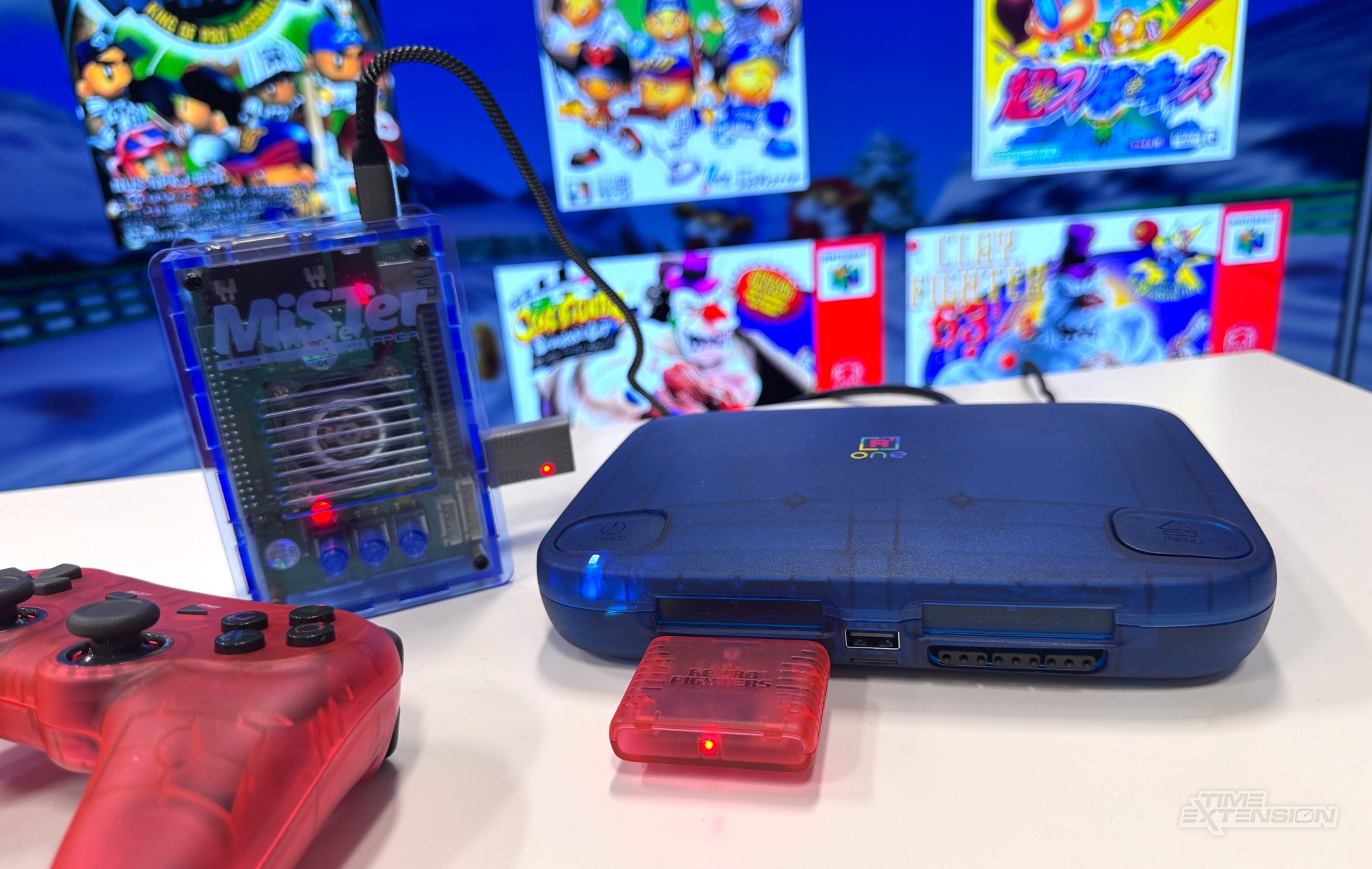
If there's one big sticking point with MiSTer FPGA at the moment, it's the fact that the system's intentionally lightweight user interface isn't quite as user-friendly as it could be, and, to more casual players, could present something of a stumbling block. That's why there's been so much interest in Taki Udon's Console Mode, which launched yesterday after months of hard work and optimisation.
As the name suggests, Console Mode presents the user with a more appealing UI, making it easier to tinker with the features and functions of the MiSTer FPGA platform. While it has been made to coincide with the launch of Taki Udon's SuperStation One, Console Mode also works on any MiSTer FPGA-based platform – including its sibling, the MiSTer Pi.
To install Console Mode on your system, you'll need to grab some files from here and copy them to your SD card. One of these files is a script that you run from your MiSTer FPGA's 'Scripts' menu to install Console Mode. Once this is done, your system will boot into Console Mode when it is next powered up.
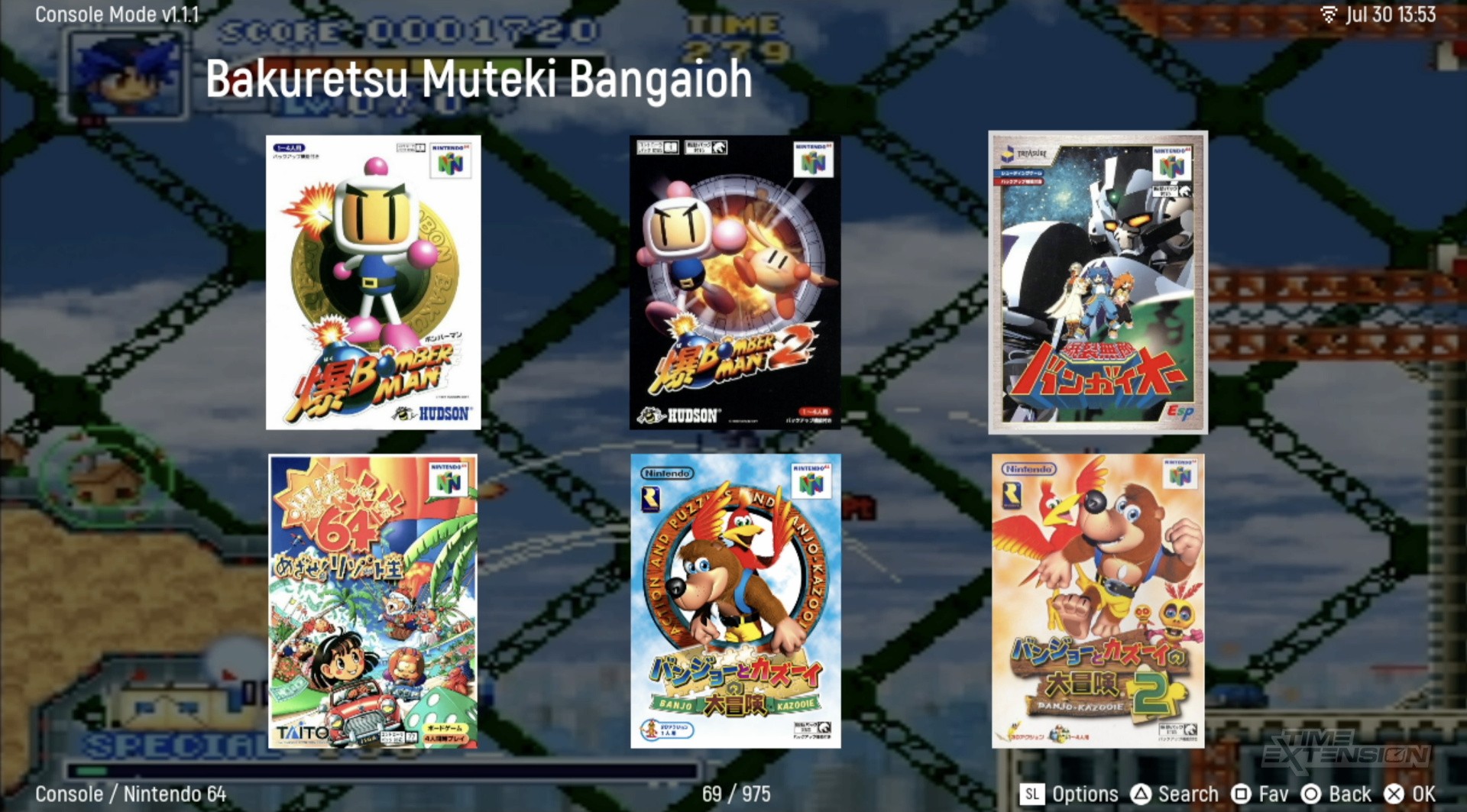
Console Mode replaces the MiSTer's no-frills menu system with something more akin to what you'd see on a home console – hence the name. The main benefit is the fact that scrolling through your library of games is far more intuitive and visually appealing, mainly because you can scrape box artwork from online databases. This process is done by default using libretro's resource, but you can use TheGamesDB if you have a valid API key.
It takes a while to fully scrape all of the images if you have a large collection, and, in my case, I had a lot of duplicate games (betas and revisions, mainly) which meant I had to spend some additional time using Console Mode's 'hide game' option – but, once done, I was pretty pleased with the way it all looks, especially when using the 'Big Grid' UI mode. Also, while hovering over a box, you'll notice that the background changes to a screenshot from the game (which you can even customise yourself, if you wish).
You can edit the colour scheme of Console Mode too, and it's possible to alter the animations in the UI to give everything a snappier feel in terms of performance, if you so wish. If you want to speed things up even more, you can reduce the resolution Console Mode runs in, too. Scripts can also be run in this mode – an essential part of keeping your MiSTer FPGA up to date.
There's a dazzling selection of other options to dig into – all of which are explained in the hour-long video above. I don't think I need to go into the same level of detail here; suffice to say Console Mode, for me personally, has transformed what could often be quite an onerous and complex user experience into something that – while not without its hiccups – is far easier to use, and will surely open up the MiSTer FPGA platform to more casual players.
I did notice a few problems, such as my WiFi connection screen randomly crashing back to the stock MiSTer UI, and the fact that the initial boot time on my SuperStation One is quite long – so long, in fact, that I assumed it had completely crashed until I left it running for a minute or so. The load time was much faster on my MiSTer Pi, so it could have something to do with the way I've got my SuperStation One set up – I'll circle back and update this article if I find out more.
The really good news is that, once you have version 1.1.1 installed, all future Console Mode updates will be installable over-the-air, so you won't have to worry about copying files to your SD card. In a future update, Taki Udon has teased the ability to load games via the SuperDock's CD drive, something that is already possible if you're using the new custom cores created by Anime0t4ku.
Once you have Console Mode installed, it's possible that you may never have to delve into the standard MiSTer UI again – but you do get occasional reminders that this is just a layer which sits above that interface. For example, to exit a game loaded via Console Mode you need to invoke the standard MiSTer pop-up menu and then select an option to restart Console Mode – a minor inconvenience, it has to be said.
While we've had to wait a long time to get this first major release of Console Mode, I have to say it has ticked all of the boxes I wanted it to. It makes launching games on your MiSTer FPGA system a breeze, and turns the experience into something a lot more streamlined and aesthetically pleasing.